How to add a sighting in Trip Tick
Logging a sighting is the single most-used action in Trip Tick — here’s how to do it quickly in the field, and what’s worth adding for a more useful record later.
During a trip
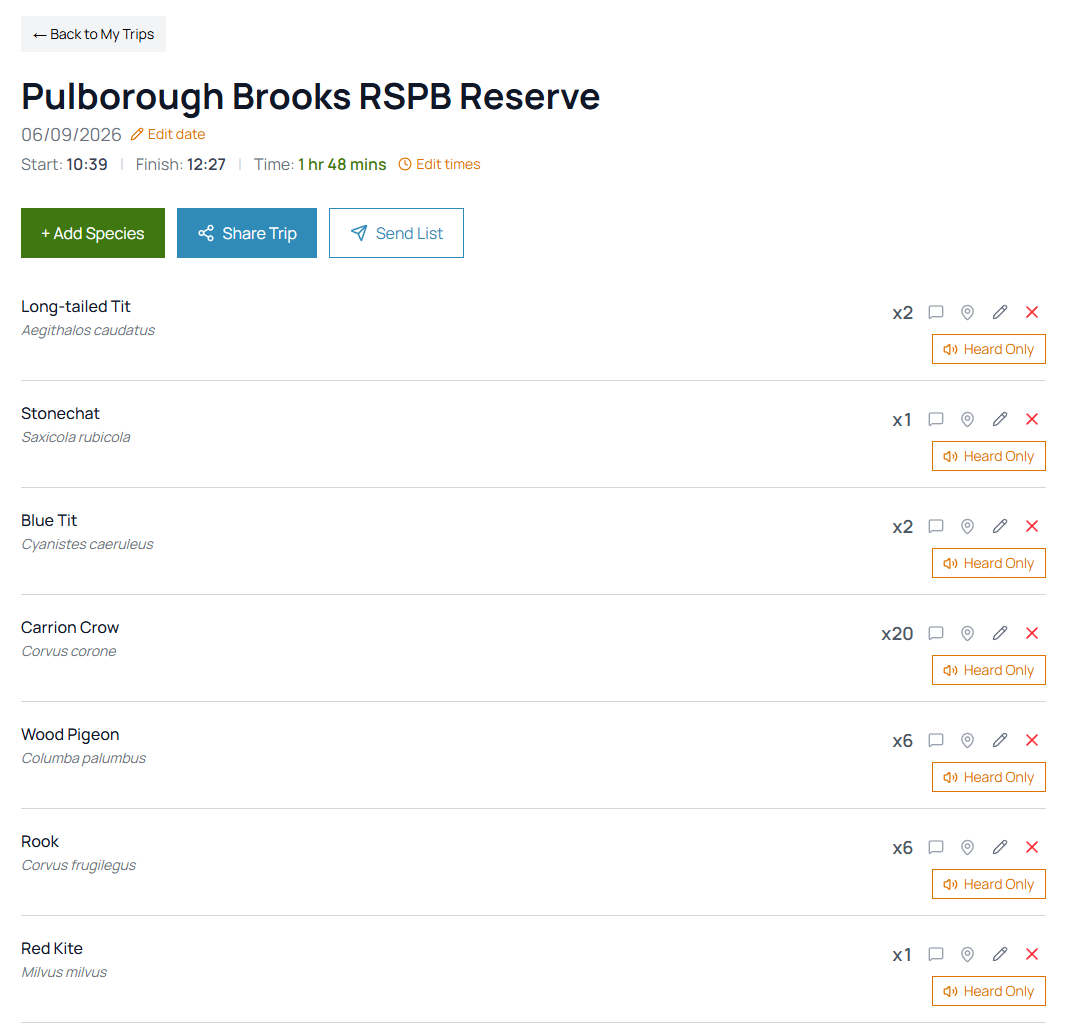
While recording a trip, type the species name into the Add Species box. Trip Tick narrows the results as you type — use the arrow keys and press Enter, or tap a name, to add it. It’s added to that trip straight away, and once you submit it counts toward your life list and your location and yearly totals.
Set a count
Each species is added with a count of one. Nudge it up or down with the + / − buttons — even a rough “around 30” is far more useful in your reports later than leaving it at one. For a single bird, the default needs no extra input at all, and you can always refine the count afterwards.
Heard it but didn’t see it?
If you only heard a bird, tap Heard Only on its row — it still counts, but it’s flagged so you know it wasn’t a visual record. You can also tap the pin icon to mark exactly where you saw it on the map. For anything you want to remember about the outing as a whole, use the Trip Notes on the trip itself.
Give a good bird a shout
Spotted something your birding friends would want to know about? Tap the megaphone icon on that species and Trip Tick will alert the friends you’ve chosen when you submit the trip — a quick way to put the word out without leaving the field.
Editing a sighting afterwards
Sightings aren’t locked in once logged. Open the trip from My Trips and you can adjust a sighting’s count at any time — handy if a photo review at home shows there were more birds than you first logged.
A quick checklist for a good sighting
- Species — get this right first; everything else builds on it.
- Count — even a rough estimate beats leaving it at one.
- Heard Only — flag the birds you heard but never saw.
Start a trip and log it in seconds, even offline.
Open Trip Tick →