How to view your reports in Trip Tick
Trip Tick gives you the depth of reporting other birding apps don’t. Here’s where to find your reports and how to read the ones that matter most.
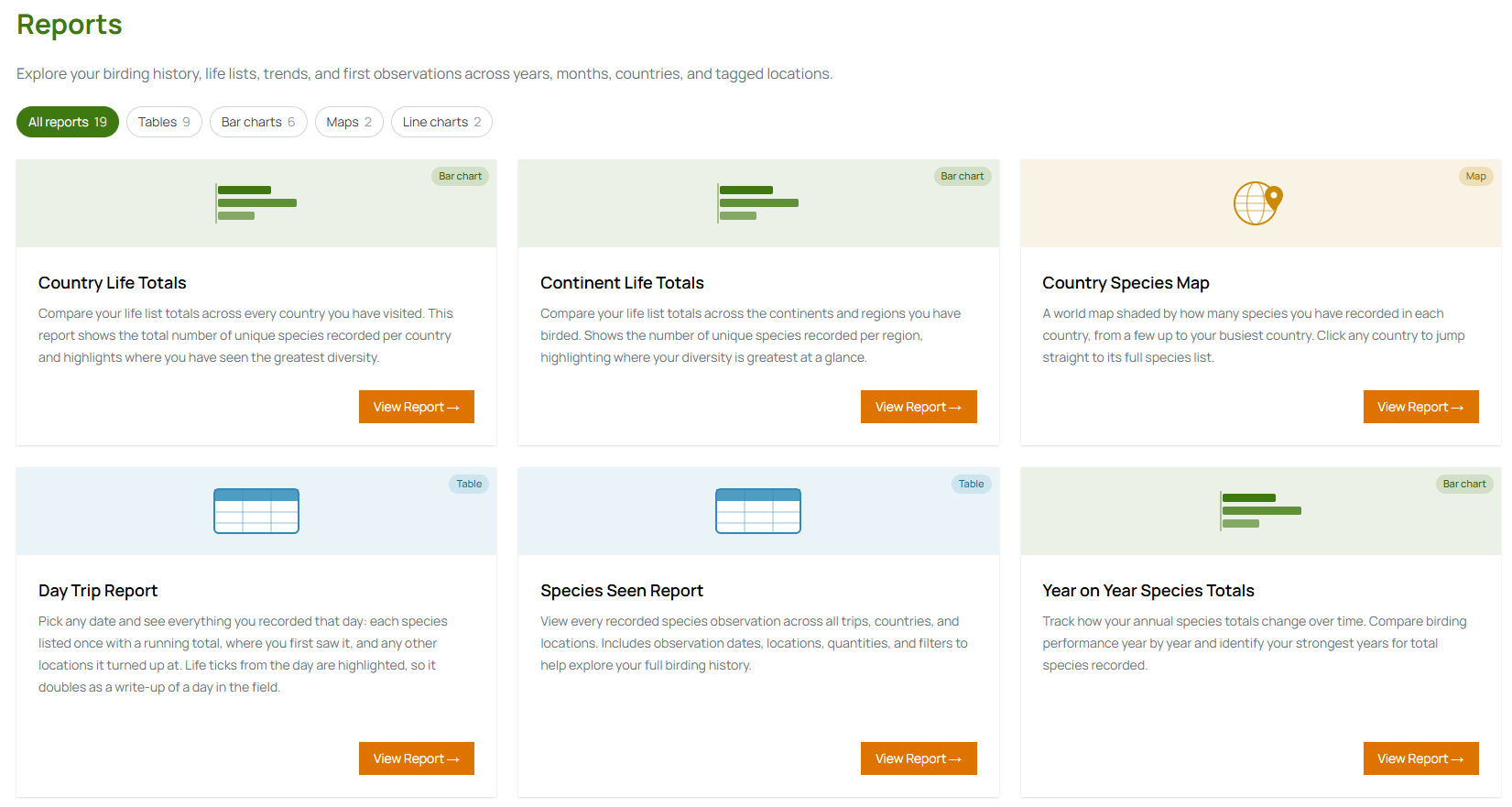
Where to find your reports
Open the Reports tab from the main menu. If you’re on Premium, you’ll see the full set of twenty-one reports laid out as a dashboard — everything from your top locations to your year-on-year trends, all charted automatically from the trips and sightings you’ve already logged. There’s nothing to set up; your reports build themselves as you log.
Reports worth checking first
- Country Life Totals — your life list broken down by every country you’ve birded, so you can see where your diversity is greatest.
- Year on Year Species Totals — how your annual totals compare, useful for spotting a quiet year or a particularly good one.
- Life First Observations — the very first time you recorded each species, with the date and place of every life tick.
- My Locations Map — every location you’ve pinned on an interactive map, free for everyone, with species counts on each pin.
Filtering a report
Most reports have their own controls along the top — pick a year or a country, or change the sort (latest, first seen, or alphabetical) on the first-observation reports. It’s the quickest way to focus on exactly the slice you’re interested in without scrolling back through individual trips.
Exporting your data
Want your records outside the app? Head to Profile & Settings and export your locations and sightings as CSV files — handy for a backup, a spreadsheet of your own, or crunching the numbers however you like.
Reports are a Premium feature
Free accounts can log unlimited trips and sightings, see their life list total and use the My Locations Map — but the full report dashboard is part of Premium. It’s the deeper insight that turns a list into a story, and it’s one of the ways Premium subscriptions keep Trip Tick running.
Go Premium and unlock all 21 reports — just 8p a day.
Go Premium →